Create and manage Shared Folders

You can create system folders on your Personal Files or Company Shared files. (Team Shared Files)
We will create a folder called Client Uploads in this example.

To start, open a browser and go to:
Login using your SyncedTool Credentials.
Navigate to the location where you would like to create your New Folder.

NOTE: You can create a NEW folder inside your personal files (accessible only to you) or inside
a Team Share folder. (Accessible to all users with access to that folder.)
a Team Share folder. (Accessible to all users with access to that folder.)
** If creating inside Personal Folders accessible only to you, skip to Create a Personal Upload Folder Section.

Creating Company Shared folder.
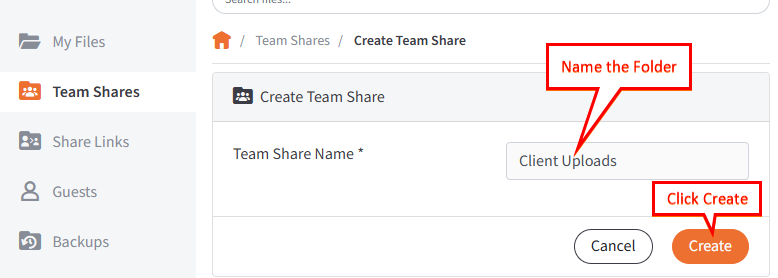
1. Click on Team Shares on the left hand side menu.
2. Click on Create Team Share
3. Name your folder. Ex: Client Uploads
4. Click Create button.
If necessary, give additional users access to this folder.
5. Select the User from the drop down.
6. Click on Add to Share button.
7. Once users have been added/removed go back to the Client Uploads Folder.
Creating a Personal Upload Folder
1. Click on My Files on the left hand side menu.
2. Click Create dropdown and pick Folder
3. Name the folder Client Uploads
Client Uploads folder has now been created.
To learn how to create an Upload Request Folder view this article.
To learn how to create an Upload Request Folder view this article.
Related Articles
Create and Managed Upload Request Folders
With upload requests, you can generate a link allowing anyone to upload files to any Upload Folder you create. Uploaders can upload anonymously, without having a guest or system account and without seeing the contents of those shares. You can create ...Opening a Shared File in SyncedTool
Once the user has shared a folder with you the following steps will occur: You will receive an email notifying you that a guest account has been created for you and a second one that the user has shared a folder with you. Once you login to the ...Restarting SyncedTool
Restarting the Axcient x360Sync Client (Windows) If your files are not syncing or the x360Sync icon appears to be stuck, please follow these steps: 1. Press “Ctrl + Shift + Esc” to open “Task Manager” 2. If Task Manager opens in the simplified view, ...SyncedTool Training Video File Library
Please click on the link below to access the REALTIME SyncedTool Video File Library Training Videos Link opens in new window.How to View a Shared Account in Outlook
If you were added to a shared Microsoft email account or have been delegated another email account to you, you can view it in 2 ways depending on how you access Outlook. 1. Microsoft Outlook Application installed on your computer. If you are using ...